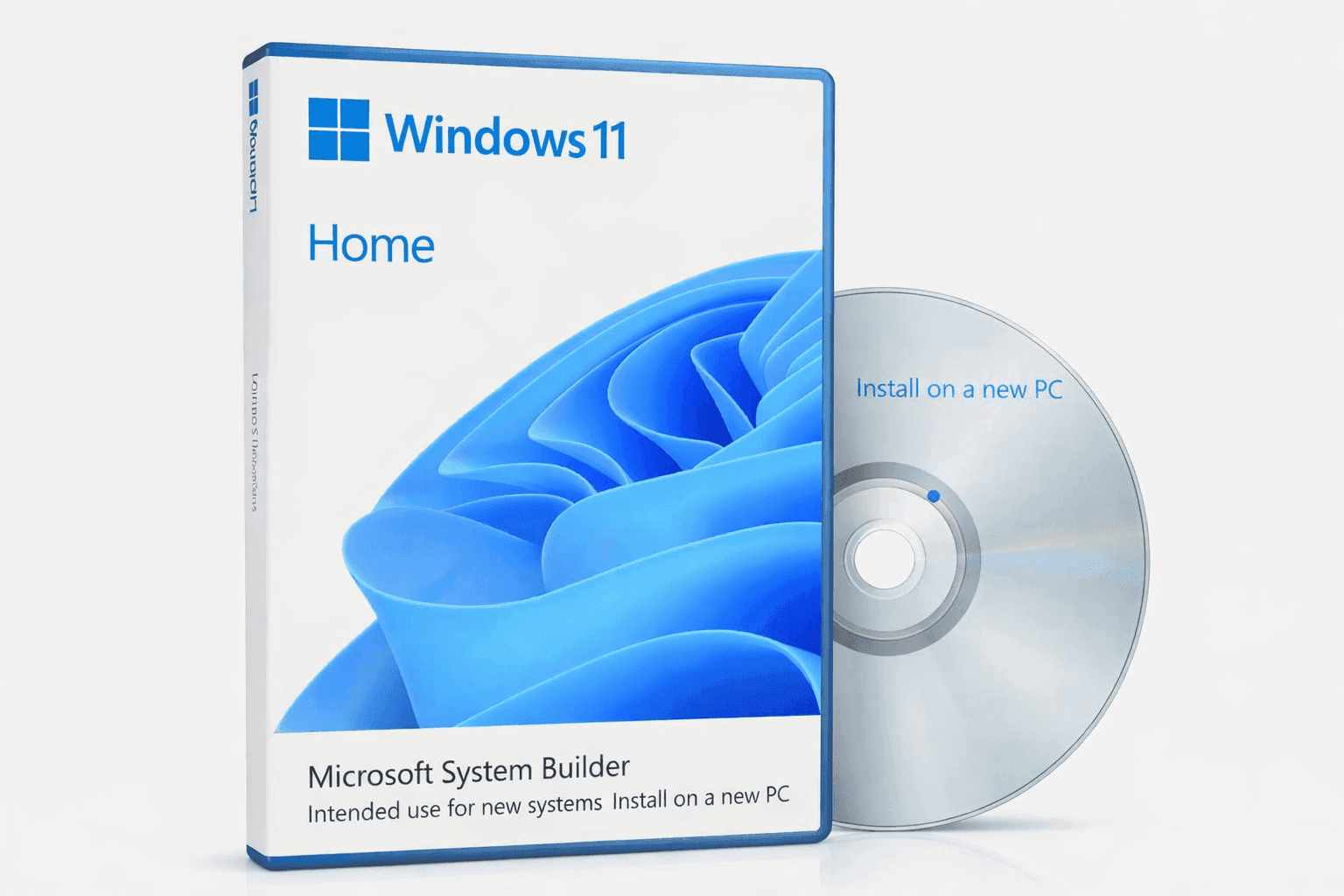
A custom PC build deserves an operating system that works smoothly without draining your budget—and that’s where Microsoft System Builder Windows 11 comes in. This OEM version offers the same core experience as retail Windows, yet at a lower price point designed for system builders and DIY users. You get modern performance, strong security, and access to the latest features without paying full retail markup.
If you’re assembling a new desktop or upgrading a workstation, understanding how this license works can save money and prevent headaches later. From pricing to limitations, there are a few important details that impact long-term value.
Microsoft System Builder Windows 11: What You Get and How It Works
When you purchase Microsoft System Builder Windows 11, you’re getting an OEM (Original Equipment Manufacturer) license. This means the license is tied to the first motherboard it activates on.
The package typically includes:
- A one-time activation key
- Installation media (USB, DVD, or downloadable ISO)
- A Certificate of Authenticity (COA), depending on the seller
From hands-on testing during a recent PC build, installation feels identical to retail Windows. The setup wizard is clean, activation is fast, and updates begin immediately after installation. The key difference appears later—this license stays locked to your hardware.
Windows 11 OEM License Pricing and Market Comparison
Pricing is one of the biggest reasons people choose an OEM version.
Here’s a realistic snapshot based on current Amazon US listings:
- Windows 11 Home OEM: around $95–$120
- Windows 11 Pro OEM: around $140–$170
- Retail versions: $139 (Home) and $199 (Pro)
That gap makes a noticeable difference, especially for multiple builds.
Lower-priced keys from third-party sellers may appear tempting, sometimes as low as $20. However, many of these keys fail activation or violate Microsoft terms. Sticking with reputable retailers avoids wasted money and frustration.
Windows 11 OEM vs Retail: Key Differences You Should Know
Understanding the difference between Windows 11 OEM vs retail helps you make a smarter decision.
OEM version:
- Locked to one motherboard
- No direct Microsoft support
- Lower cost
Retail version:
- Transferable to another PC
- Full Microsoft support
- Higher upfront cost
If your build will stay unchanged for years, OEM works well. If you upgrade hardware often, retail offers more flexibility.
System Builder Windows 11 Installation Process Explained
Installing system builder Windows 11 is straightforward, even for first-time builders.
Steps typically include:
- Create a bootable USB using Microsoft’s Media Creation Tool
- Boot from USB and start installation
- Enter the OEM product key
- Select installation drive and complete setup
During testing, installation took about 15–25 minutes on an SSD. Drivers and updates downloaded automatically after setup, which keeps things simple.
Windows 11 System Requirements for OEM Builds
Before installing, your hardware must meet Windows 11 system requirements.
Minimum requirements include:
- 64-bit processor (1 GHz or faster, 2+ cores)
- 4 GB RAM (8 GB recommended)
- 64 GB storage
- TPM 2.0 and Secure Boot support
Microsoft reports that these requirements improve system security and reliability (source: Microsoft official documentation). Older systems may not qualify without workarounds.
Performance and Gaming with Windows 11 Pro OEM
Choosing Windows 11 Pro OEM adds extra capabilities, but performance remains strong across both versions.
Key performance features:
- Improved CPU scheduling for newer Intel and AMD chips
- Faster wake-from-sleep times
- DirectX 12 Ultimate support for gaming
- DirectStorage for faster load times
In real-world use, gaming performance matches or slightly improves over Windows 10 in many titles. Load times feel quicker on NVMe SSDs, especially in large open-world games.
Security Features That Come Built In
Security is one of Windows 11’s strongest areas.
Important features include:
- TPM 2.0 for hardware-level protection
- Secure Boot to prevent unauthorized software
- Windows Hello for biometric login
- Virtualization-based security (VBS)
Pro edition adds:
- BitLocker encryption
- Remote Desktop hosting
From experience, BitLocker setup is quick and useful for protecting sensitive files, especially on workstations or laptops.
Windows 11 Home vs Pro OEM: Which One Fits Your Needs?
Choosing between Windows 11 Home vs Pro OEM depends on how you use your system.
Home version is ideal for:
- Gaming setups
- Everyday use
- Streaming and browsing
Pro version suits:
- Business users
- Developers
- Advanced multitasking
Pro adds features like Hyper-V virtualization and domain joining, which are unnecessary for most casual users but essential for professional environments.
Hardware Limits and Scalability
OEM versions have different hardware limits.
Windows 11 Home:
- Up to 128 GB RAM
- One CPU socket
Windows 11 Pro:
- Up to 2 TB RAM
- Two CPU sockets
If you’re building a high-end workstation or planning future upgrades, Pro provides more room to grow.
Advantages of Using an OEM License
The biggest advantage is value.
Key benefits:
- Lower upfront cost
- Same core features as retail
- Ideal for custom PC builds
- Quick activation process
For builders assembling multiple PCs, savings add up quickly. Even for a single system, the price difference feels worthwhile.
Limitations You Need to Consider
OEM licensing has a few trade-offs.
Main drawbacks:
- Non-transferable license
-No direct Microsoft support - Locked to motherboard
If your motherboard fails, the license usually cannot be moved. This is the most common frustration mentioned in forums and user discussions.
Real-World Use Case: A Custom Build Experience
During a mid-range gaming PC build using Windows 11 Pro OEM, the setup process was smooth and stable.
Highlights:
- Activation worked instantly
- No driver conflicts after updates
- Gaming performance stayed consistent
- System booted quickly after sleep
The only limitation noticed was the inability to reuse the license on a future build, which reinforces the importance of long-term planning.
Is Microsoft System Builder Windows 11 Worth It?
Microsoft System Builder Windows 11 delivers strong value for custom PC users who plan to keep their hardware long-term. You get modern features, reliable performance, and meaningful cost savings compared to retail versions.
It’s worth considering your upgrade habits before choosing OEM. If you rarely swap motherboards, this option fits perfectly. If frequent upgrades are part of your routine, retail might be a better investment.
Conclusion
Microsoft System Builder Windows 11 offers a practical way to run a modern operating system without overspending. It covers everything from gaming performance to business tools, depending on the version you choose. The trade-off comes down to flexibility versus cost savings.
If you’re building a new PC or upgrading your setup, exploring this option on Amazon can help you find the right version at a fair price. There’s also a wide range of related tools and components worth checking out while planning your build.